
How can we help?
How to: Add Images to Articles in WordPress
Adding images to your article in WordPress is a simple process, but an important one. Images add to your SEO score and make your article more appealing for readers and Google alike. In this article, we’re going to discuss how to add the Featured Image, body images, adding Alt Text, Captions, and Citations.
Adding the Featured Image
The Featured Image is the one that will display at the top of your article and as the thumbnail on the website. Along with the title, it draws attention to your article. Get those views!
- On the right side of your article, click Set Featured Image. If you don’t see Featured Image, click the Settings icon next to the blue Publish button
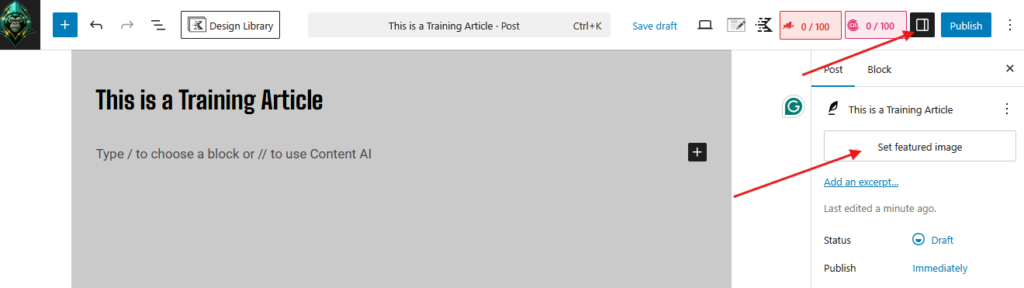
- Search the Media Library for an image that will fit with your article. Use your Keyword or subject in the search.
- Make sure the image you select is in .webp format and has dimensions of 822 by 535 pixels. (We’ve used other formats in the past, but all images must be .webp and 822×535 px. going forward.)
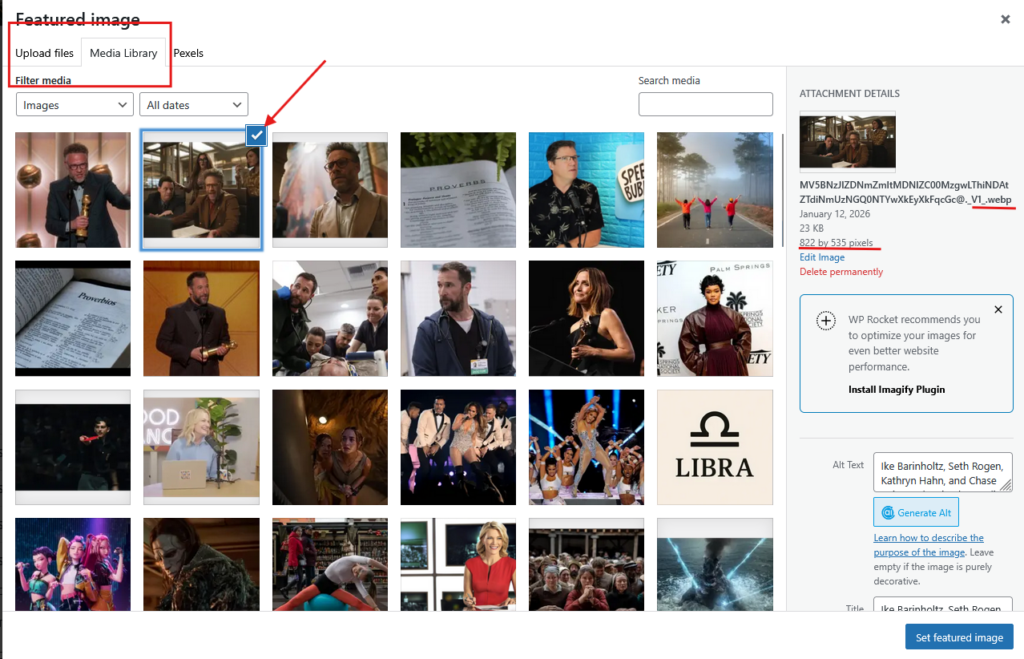
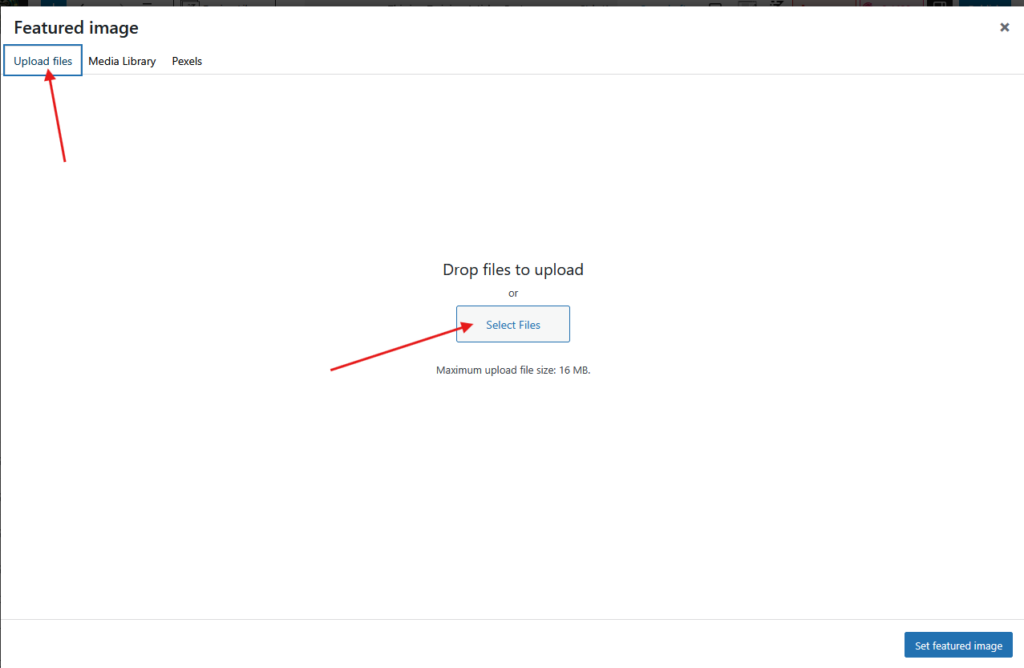
- If no suitable image is available, you can upload a correctly formatted image from an approved source to WordPress.
- Click the Upload Files tab.
- Click Select Files
- Locate the image on your computer and upload it.
Images in the Body of the Article
- Images inside the body of the article help to break up the wall of text. It makes the article easier to read and more interesting. All images must be relevant to the topic.
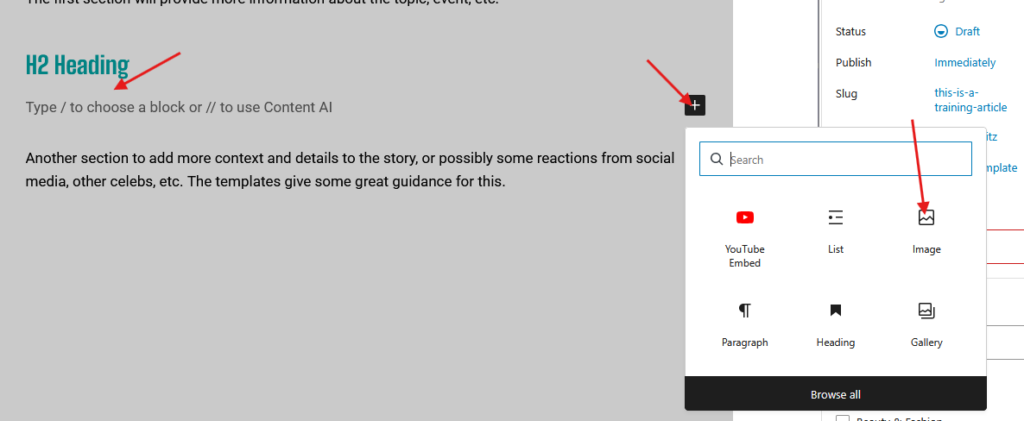
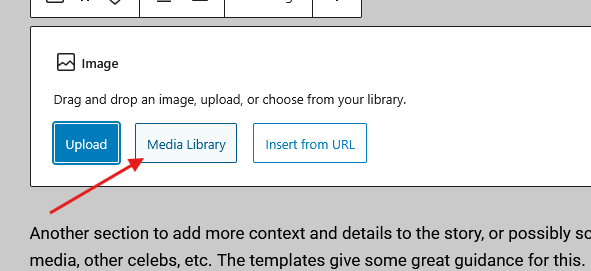
- To add an image in the body, click next to a heading and press Enter to create a new block. Then click the plus and click Image. If Image isn’t listed, click the search box and type “image.”
- Click Media Library, then search for an image or upload an image.
- Images should always be placed after an H2. They work best around the middle of the article.
- In Listicles, you might include an image for each item.
Filling in the Image Details
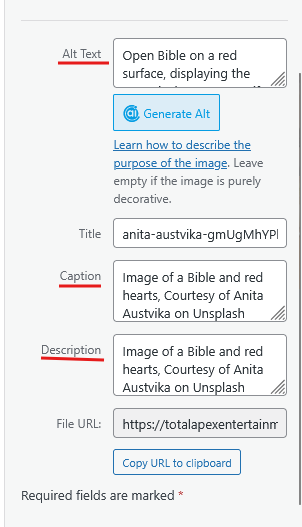
- After the image is selected or uploaded, check the Alt Text, Caption, and Description.
- Alt Text: A description of the image that includes the primary Keyword.
- Caption: This is where the citation goes. Here are some examples:
- Image of a Bible and red hearts, Courtesy of Anita Austvika on Unsplash
- Image of Taylor Swift at Stadium Name on Date, Courtesy of Photographer/Outlet
- Screenshot from “Sinners” showing Name of Actor, Courtesy of Studio Name
- Screenshot from Disney Dreamlight Valley, Courtesy of Gameloft, Via Michelle Kitz (because I took the screenshot while playing the game)
- See vertical-specific topics for more details.
- Description: Can copy either the Alt Text or the Caption to this field.
Resources
Remember: When in doubt, reach out!